
Quick answer
- Ask the professor first. Then record with Voice Memos, already on your iPhone in the Utilities folder.
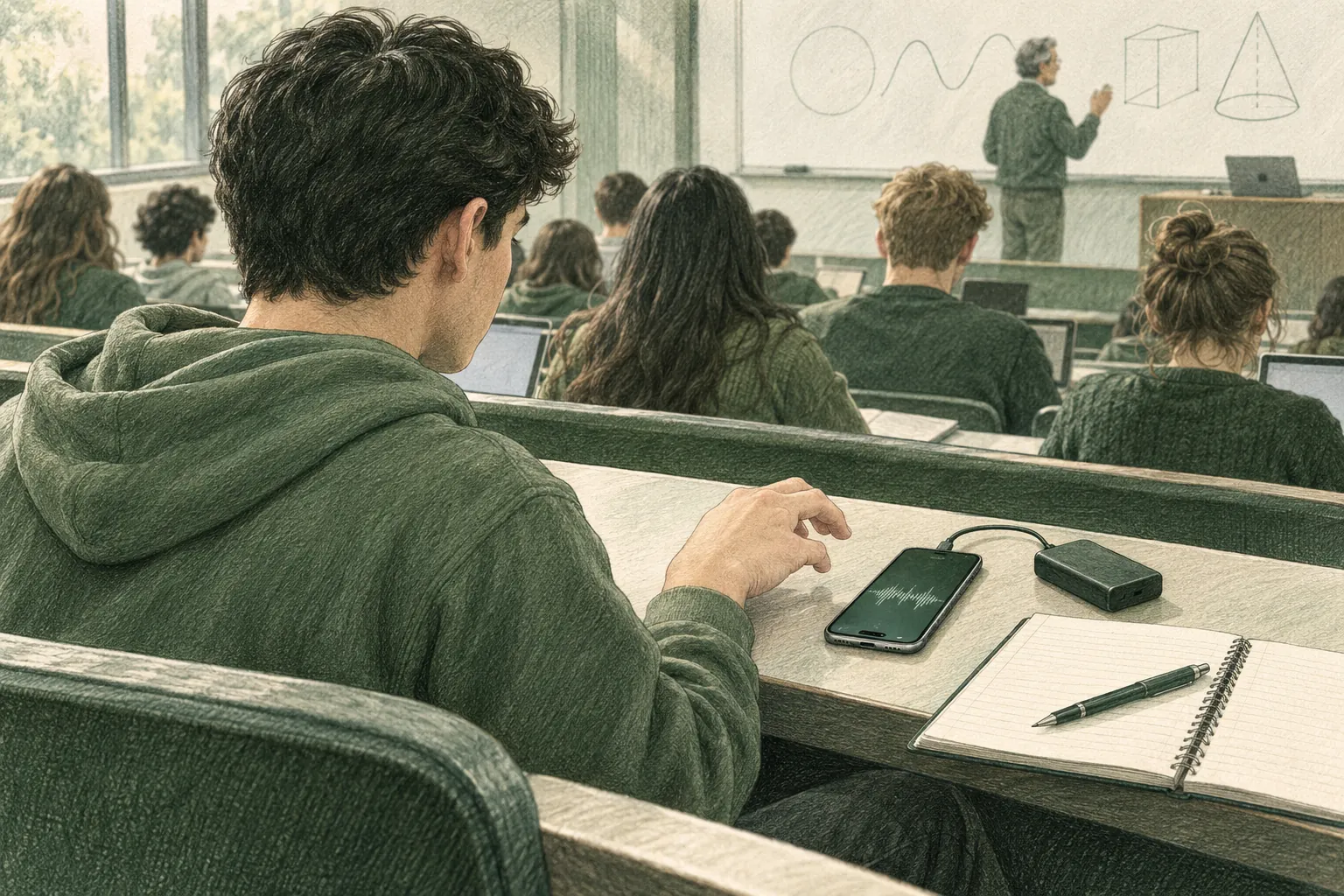
- Put the phone flat on the desk in the first rows, bottom edge toward the speaker, and do not touch it. Lock the screen, after one test at home that recording continues.
- Turn on Do Not Disturb. Check free storage and start charged. Do not open an app that plays audio; that stops the recording.
- Within a day, rename the file with the course code and date, read the transcript, and write a short summary.
Can I record a lecture on my iPhone?
Yes. Every iPhone has Voice Memos, and Apple lists classroom lectures as one of its uses. The work is in the setup and in what you do with the file afterwards.
Permission comes first. Your college's policy and the professor decide whether you can record and whether you can share the file. Read the syllabus, email the professor before the first class, and keep the phone in plain sight. Policy details, state consent laws, and the Apple Watch and laptop options are in How to record lectures in college.
Set up Voice Memos before the first class
- Find the app. Search for Voice Memos and add it to the Home Screen for quick access.
- Check the recording mode. Go to Settings, Apps, Voice Memos, Recording Mode. Mono is fine for a lecture.
- Choose a microphone mode. With Voice Memos open, open Control Center and tap Voice Memos at the top. Voice Isolation cuts room noise; Wide Spectrum keeps everything. Wide Spectrum is not on every model. Test both in the first class and keep the clearer one.
- Turn on Silent mode. This mutes the start and stop tones.
- Decide on iCloud. With Voice Memos on in iCloud settings, recordings also appear on your iPad and Mac using the same Apple Account.
The best way to record lectures on iPhone: where to put it
Start close to the lecturer or classroom speaker, with permission. Make a short test and listen back: room noise and distance affect clarity.
- Choose a seat near the speaker. Listen to a test before relying on that position for a whole lecture.
- Keep the microphones clear. Put the phone on a stable surface, outside a pocket or bag.
- Leave it alone. Taps, pen clicks or a sleeve across the phone can add noise or mask speech. A pocket or a bag gives you rustle and a muffled voice.
How to record a class lecture on iPhone, step by step
- Turn on a Focus. Open Control Center, tap Focus, then Do Not Disturb. Tap the three dots and pick "For 1 hour" so it ends on its own. Choose a duration that covers the class. Check allowed people, repeated calls and time-sensitive notifications in Focus settings.
- Open Voice Memos and tap record. Do this before the professor starts talking. The waveform moves when the microphone hears sound; if it is flat, check for a case over the microphone.
- Lock the screen. Test once that recording continues. You can also open another app, such as the slides, as long as it does not play audio. If any app starts to play sound, Voice Memos stops.
- Tap stop at the end. Stop as the professor packs up, not when the person next to you starts a private conversation.
- Rename the file now. Tap the recording, tap the name, and type the course code, date and topic. Otherwise it is called New Recording or the name of the place.
Focus, battery and storage for a full day of classes
Check interruptions, battery and free storage before class.
- Focus. Add a schedule in Settings, Focus, Do Not Disturb so it turns on by itself at your class times.
- Battery. Charge overnight and keep a cable or a small battery pack in the bag.
- Storage. Check free space in Settings, General, iPhone Storage. Turn on Offload Unused Apps in Settings, Apps, App Store if you are always close to full. Keep the original until you have checked your notes against it; follow the class retention policy.
Name and organize the recordings
By December you will have dozens of files. Use the same name pattern every time: course code, date, topic, for example "BIO101 2026-10-23 cell membranes". Voice Memos searches titles and transcripts together. A deleted file moves to Recently Deleted for 30 days by default; change that in Settings, Apps, Voice Memos, Clear Deleted.
What to do with the recording after class
| Option | What you get | Limit |
|---|---|---|
| Listen again on the phone | The parts you missed. | Full playback takes time; use playback speed and skip to the parts you need. |
| Read the transcript in Voice Memos | Text you can search, select and copy into your notes. iPhone 12 or later, supported languages. | One recording at a time. Writing Tools summaries need a compatible Apple Intelligence device, language and region. |
| Export to Files | An .m4a file by default, for a course folder or Mac. | Still audio. You need another tool to read or search it. |
| Transcribe on a Mac | Searchable transcripts and draft summaries, depending on the tool. | Needs a Mac and a transfer step. |
To export, tap the recording, the three dots, Share, then Save to Files. Choose a destination and tap Save. For text, tap the three dots, then View Transcript or Copy Transcript. Paste it next to your own notes and fill the gaps; the method is in how to turn a lecture recording into notes.
The limits of recording lectures on iPhone
- Audio from any other app stops the recording. A voice message in the group chat ends your lecture file mid-sentence. Check the waveform after you switch apps.
- A distant microphone may capture more room noise. Placement and a listening test matter.
- The transcript needs a supported language and an iPhone 12 or later, and it covers one recording at a time. It cannot tell you what the professor said about the exam across six weeks.
- Reviewing on a phone is slow. A narrow column of text suits a quote, not a chapter.
- Recording is not studying. Turn the file into notes the same day.
HOW LOCUS FITS
Record on iPhone, read and search on the Mac
Locus is a preview for recording on iPhone or Apple Watch and making searchable notes on a Mac. Transcription and draft summaries use local AI. Review the output against the audio; it can miss or change details.
For a saved Voice Memos file, complete the Mac app's first recording before dragging in an exported .m4a file. The beta needs Apple Silicon M3 or later, 24 GB of unified memory or more, and macOS 27 or later. Phone transfers can use an encrypted relay, enabled by default; cloud-synced folders still sync.
Join the waitlistQuestions people ask
Can I record a lecture on my iPhone with Voice Memos?
Yes. Voice Memos comes with iPhone. Other audio, interruptions, low battery or full storage can end a recording. Apple lists classroom lectures as one of its uses. Ask the professor first, put the phone flat on the desk near the front, and test your setup before class. Voice Memos can sync the file through iCloud on the same Apple Account. Verify a saved copy before deleting the original.
Does Voice Memos keep recording when I lock my iPhone?
Apple's guide says you can leave Voice Memos for another app and it keeps recording, as long as that app does not play audio. It does not describe the Lock Screen separately, so test it once at home. Do not open a video, a music app or a voice message during the lecture. On models with the Dynamic Island, the recording stays visible at the top of the screen.
Can my iPhone transcribe a recorded lecture?
Yes, on iPhone 12 or later in supported languages and regions. Voice Memos can show the transcript while you record and lets you search, view and copy it afterwards. Writing Tools summaries need Apple Intelligence on a supported model, language and region; iPhone 15 and 15 Plus do not qualify. The transcript covers one recording at a time.
How much storage do recorded lectures take on an iPhone?
It depends on the length and the recording mode, and a semester of 50-minute lectures adds up. Check free space before the week starts in Settings, General, iPhone Storage. Before deleting, check your notes against the audio and save any permitted backup. Deleted files stay in Recently Deleted for 30 days by default; your settings can change that.
Can Locus turn my iPhone lecture recordings into notes?
The preview can make transcripts and draft notes on a Mac with Apple Silicon M3 or later, 24 GB of unified memory or more, and macOS 27 or later. Check important details against the audio. Join the waitlist below for beta selection; access is not immediate or guaranteed. Voice Memos remains the built-in option if you do not have a compatible Mac.
Sources
- Make a recording in Voice Memos on iPhone (Apple Support) — recording steps, microphone modes, and the rule that other audio stops recording, checked 2026‑10‑23.
- View a Voice Memos transcription on iPhone (Apple Support) — transcript models, languages and Writing Tools, checked 2026‑10‑23.
- Turn on or schedule a Focus on iPhone (Apple Support) — Control Center steps and schedules, checked 2026‑10‑23.
- Manage storage on iPhone (Apple Support) — checking free space and Offload Unused Apps, checked 2026‑10‑23.
- Export a Voice Memos recording to Files on iPhone (Apple Support) — .m4a export steps, checked 2026‑10‑23.
- Edit or delete a recording in Voice Memos on iPhone (Apple Support) — Recently Deleted and the Clear Deleted setting, checked 2026‑10‑23.
- Set up a Focus on iPhone (Apple Support) — allowed notifications and repeated calls, checked 2026‑10‑26.
- Apple Intelligence device and system requirements (Apple Support) — supported hardware, languages and regions, checked 2026‑10‑26.