
OBSIDIAN · TEMPLATE
An Obsidian meeting
notes template.
A free template for the meetings you keep in Obsidian: properties for date, attendees and project, then summary, decisions, action items and open questions. Copy it, or download the Markdown file.

The template.
Copy it into a note, or download the Markdown file and put it in your templates folder. It uses only syntax from Obsidian’s own help pages.
---
date: "{{date:YYYY-MM-DD}}"
start: "{{time:HH:mm}}"
attendees:
  - "[[]]"
project: "[[]]"
tags:
  - meeting
source: ""
duration: ""
---
# {{title}}

## Summary
-

## Decisions
-

## Action items
- [ ] Task (owner: [[]], due: YYYY-MM-DD)

## Discussion notes
-

## Open questions
-

## Links
- [[]]
The variables are in quotation marks on purpose. Obsidian’s help warns that in Live Preview the Properties panel can overwrite template variables that are not quoted, and its own example template quotes them.1
Set it up with the Templates plugin.
Templates is a core plugin, built into Obsidian. No community plugin is needed.
- Turn it on. Go to Settings → Core plugins and enable Templates.2
- Choose a folder. Under Core plugins → Templates → Template folder location, enter the folder that holds your templates.1
- Add the file. Save
Meeting notes template.mdin that folder. - Insert it. In a new note, choose Insert template in the ribbon, or run “Templates: Insert template” from the command palette.1
{{title}},{{date}}and{{time}}fill in for you. - Check the date type once. Property types apply across the whole vault.3 If
datedoes not show as a date in your first meeting note, set its type to Date, and every meeting note follows.
What each part is for.
- [ ], which Obsidian shows as checkboxes.4 Owner and due date are plain text.A filled example.
A fictional 24-minute meeting, written into the template.
---
date: 2026-10-20
start: "14:00"
attendees:
  - "[[Alex]]"
  - "[[Jamie]]"
project: "[[Website redesign]]"
tags:
  - meeting
source: "Recorded on Apple Watch"
duration: "24 min"
---
# Website planning

## Summary
- Alex and Jamie agreed on the page list and launch order.

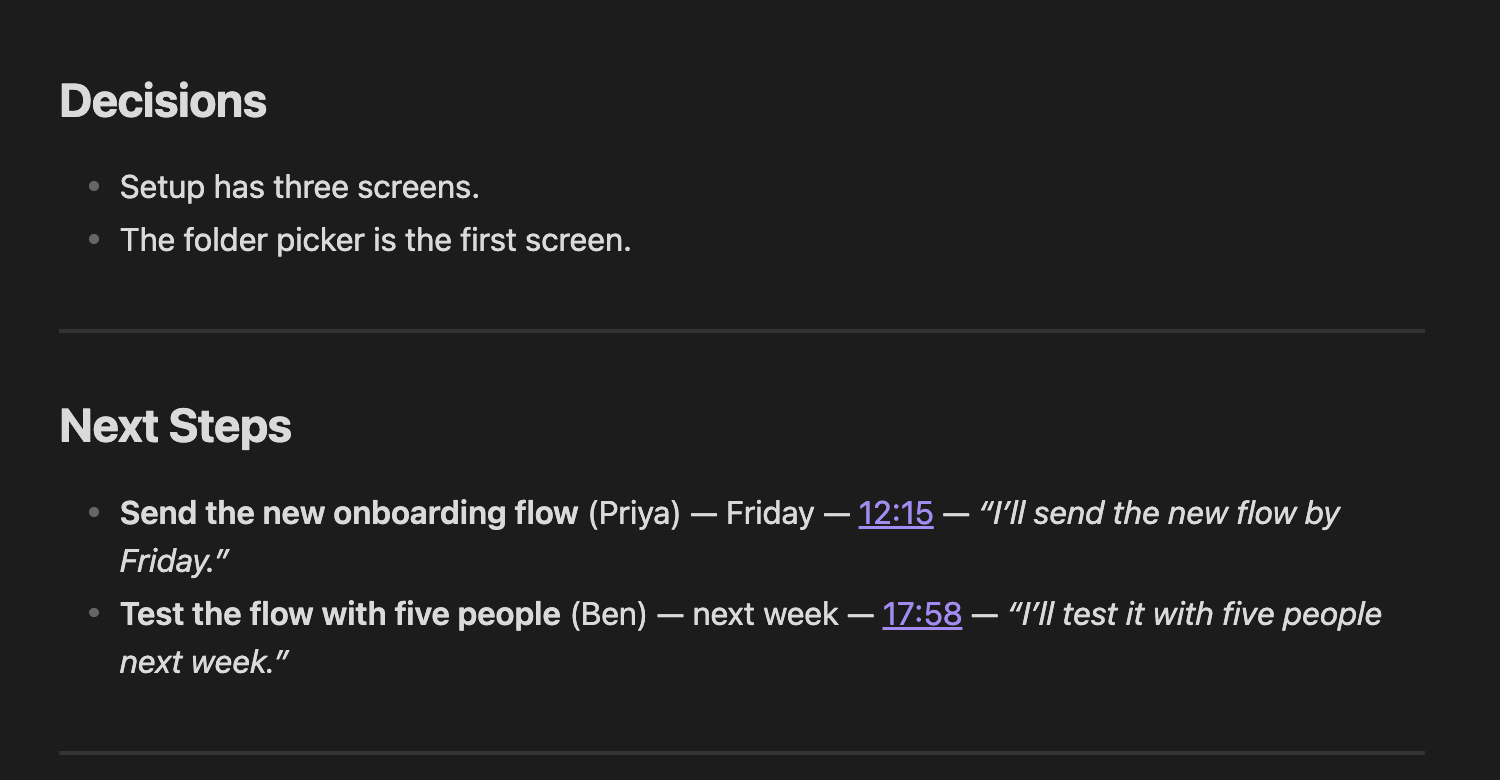
## Decisions
- Launch with four pages: Home, Product, Pricing, Contact.
- Write the copy before the design.

## Action items
- [ ] Draft homepage copy (owner: [[Alex]], due: 2026-10-27)
- [ ] Collect three reference sites (owner: [[Jamie]], due: 2026-10-23)

## Discussion notes
- The pricing page needs a short FAQ.
- One clear call to action per page.

## Open questions
- Do we need a blog at launch?

## Links
- [[Website redesign]]
Fill it from a recording, not from memory.
Typing notes during a meeting means half listening. A recorder lets you be in the room.
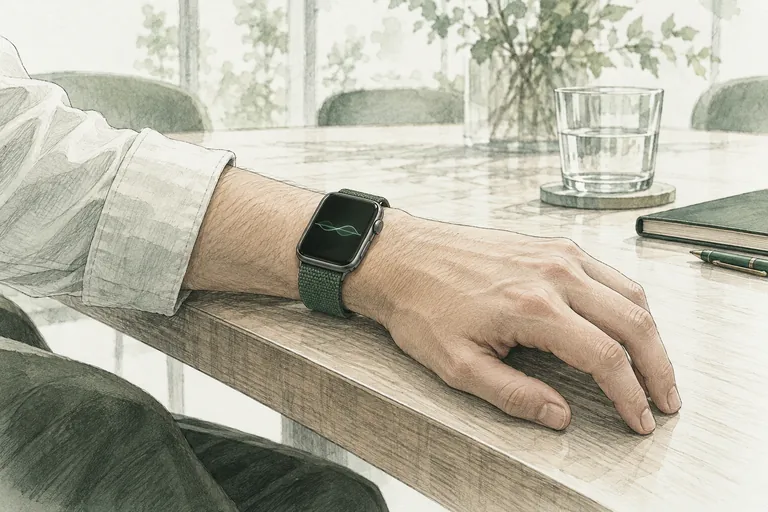
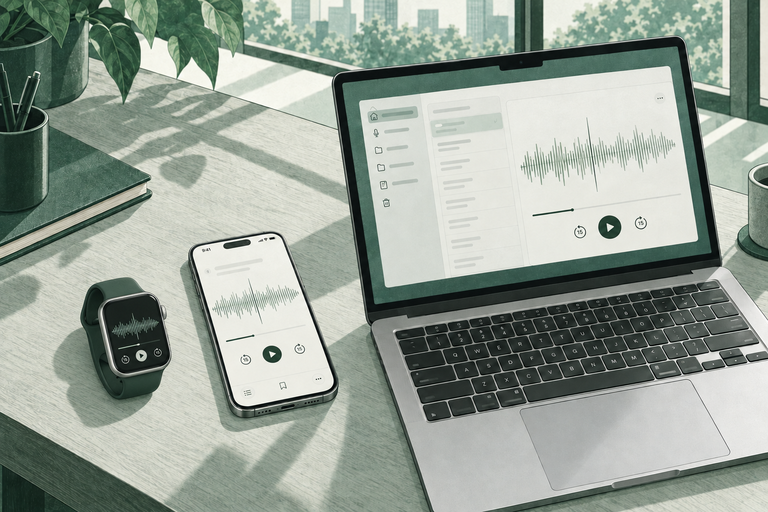
Locus records the meeting on your Mac, Apple Watch or iPhone. Your Mac writes the transcript, a summary, the decisions and the next steps with local AI, and saves the notes as Markdown files in your Locus library folder. No cloud AI is required.
Obsidian opens that folder directly. In Obsidian, use Manage Vaults and choose Open folder as vault, then select your Locus library folder.6 No Obsidian plugin is needed. Locus writes its own notes and does not need this template; keep both in the same vault, and use the template for meetings you did not record.
Small things that save time later.
- Note names. Avoid
# | ^ : %% [[ ]]in meeting note names, because links to them may not work.5 - Tags. Tags cannot contain spaces and need at least one non-numeric character, so use
meetingorclient-review, not2026.7 - Start time. The template uses
start, nottime, so it does not clash with a Date & time property your vault may already have. - Templater. Templates is the built-in core plugin. Templater is a separate community plugin; this template does not need it.
 Product
 Guide
 Product