
Record with Apple Watch
The conversation.
Within reach.
Put Locus on your wrist. Start with one tap, finish with Stop, and find the notes on your iPhone and Mac.
Jump to steps ↓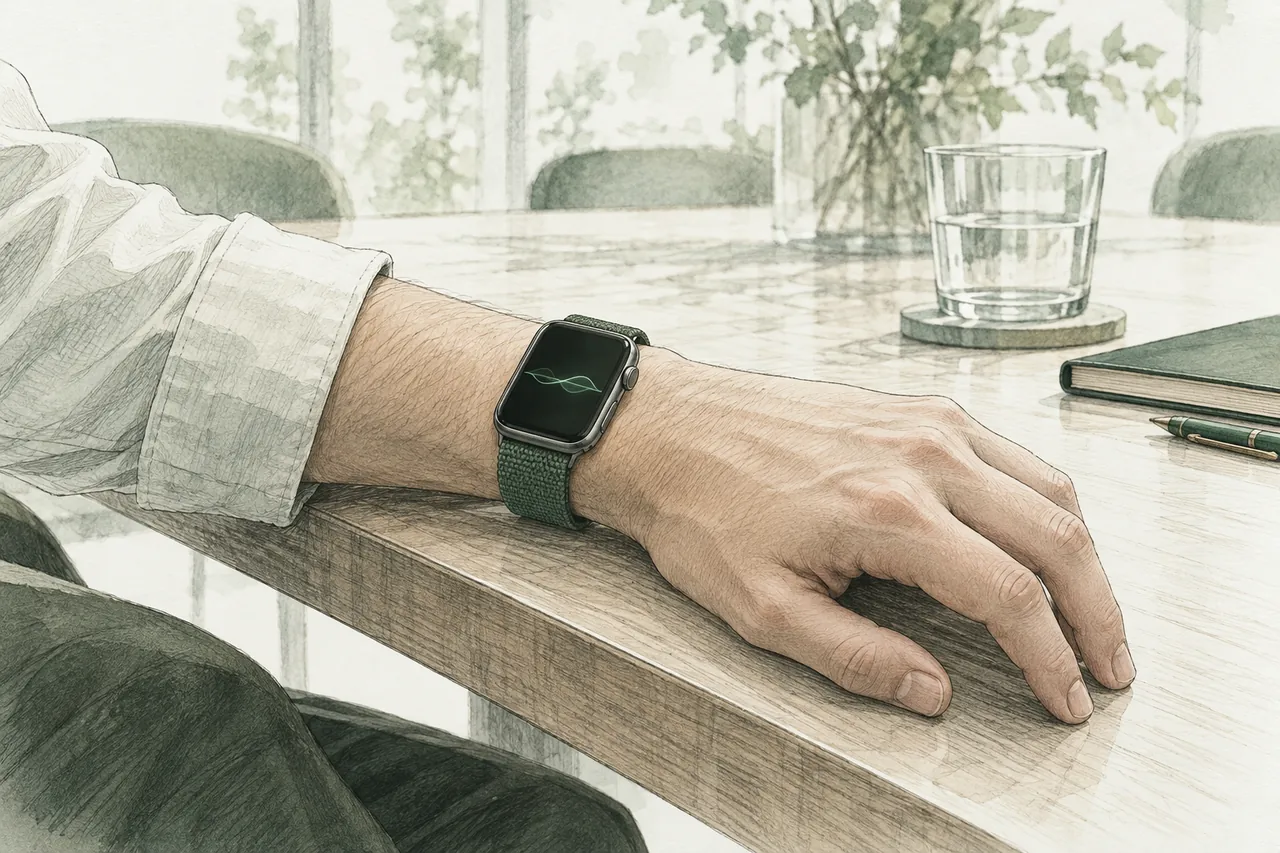
Put Locus on your Watch.
Use an Apple Watch with watchOS 26 or later. First install Locus on its paired iPhone, with iOS 26 or later. Keep the two devices nearby.
- Open Apple’s Watch app on your iPhone.
- Open My Watch, then Apps → Available Apps. On some versions, Available Apps is directly under My Watch.
- Tap Install beside Locus. Wait for installation to finish.
- Open Locus on your Watch. You should see the Record button.
My Watch
 LocusINSTALL
Choose Install beside Locus.
Watch app · simplified instruction picture
Locus is not in Available Apps.
Check that Locus is installed on the paired iPhone. If Locus is already listed under Installed on Apple Watch, open it on your Watch instead.
Keep a shortcut on your watch face.
A complication is a small shortcut on a watch face. Locus’s shortcut opens the app; it does not start a recording.
LocusTap Locus → then tap Record.
Illustrated example · available positions vary by face
- On your Watch, touch and hold the current face. Tap Edit.
- Swipe to the complication settings. Choose a position that supports Locus.
- Turn the Digital Crown to find Locus, then select it.
- Press the Digital Crown to save. Tap the face to return to it.
Record. Stay present. Stop.
Check the timer before you put your attention back on the conversation.
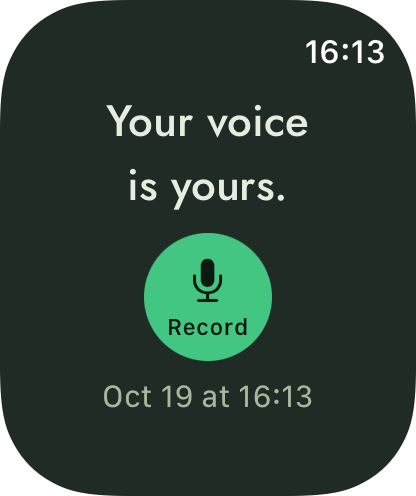
Tap the green microphone.
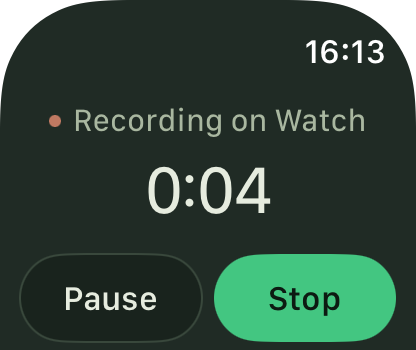
Finish from the recording screen.
Watch recording controls. Audio transfers through iPhone after you tap Stop.
Tap Record and allow microphone access if asked. A running timer confirms the recording has started. Use Pause for a break and Resume to continue. Tap Stop when the conversation ends.
Keep the microphone unobstructed. Start with a short test in the room where you plan to record.
Your Watch records. Base makes the notes.
After you stop, the audio travels through your paired iPhone to your Mac.
Your Mac does the AI work. Your Watch and iPhone can keep recording while it is away.
Bring your Watch and iPhone back within reach. Open Locus on iPhone if you need to check the transfer. Keep your paired Mac awake, with Base running and reachable on the same Wi-Fi.
When processing finishes, open the meeting in Locus on iPhone or Mac. The Watch captures the audio; you read the finished notes on the larger screens.
I stopped recording, but the notes are not there.
Check the route in order: Watch to iPhone, then iPhone to Base. Confirm that the Mac is awake and the devices are paired. Audio can wait on Watch until it can transfer. A transferred recording still needs Base to prepare its notes.