
Setup Guide
A place to start.
A Base to return to.
Both setup guides, in one place. Keep this chapter open on your Mac: prepare Base first, then follow the iPhone steps alongside it.
Jump to steps ↓
PART 1 / ON YOUR MAC
Mac setup guide
Prepare Base, choose a home for your files, and make it ready to pair.
Prepare your Mac Base.
Keep your Mac connected to power and the internet for the initial model download.
- Install and open the Mac version of Locus. Continue through the Base introduction.
- Start the model download. The app shows the size needed for your Mac. Let it finish before your first full test.
- Choose Open Login Items. In System Settings, enable the Locus item under App Background Activity.
- Return to Locus and continue. Keep your Mac awake while Base prepares recordings. Choosing Quit stops Base.
App Background Activity
Enable the background item identified by Locus.
The item has a different name.
It may appear under Communication Geometry LLC. Use the information button to check that the item belongs to Locus, then enable it.
Give your files a home.
Choose a folder you can find again. Locus stores readable notes and source files there.
A home for your notes.
- During first setup, select Choose folder….
- Choose a dedicated Locus folder. For a new library, a folder inside an Obsidian vault can work too.
- Confirm the folder, then choose Continue. Find the location later in Settings → Storage.
Make Base ready for your iPhone.
Do this on the Mac before you search for it from your iPhone.
- In Locus setup, choose Pair iPhone. If transfers are off, choose Turn on phone transfers first, then return and choose Pair iPhone.
- Continue through the network guide. Allow Locus to access your local network when macOS asks.
- Leave Locus at Ready for your iPhone. Keep the Mac awake, then continue to the iPhone setup below.
Ready for your iPhone
Now open Locus on your iPhone and choose Find my Base.
I did not allow local-network access.
On Mac, open System Settings → Privacy & Security → Local Network and enable Locus. Return to Locus and try pairing again.
PART 2 / ON YOUR iPHONE
iPhone setup guide
Keep this page open on your Mac. Base should now be ready for your iPhone.
Install and open Locus.
Start on the iPhone you want to use for recording.
Install TestFlight, open your Locus beta invitation, and install Locus on iPhone. Open Locus. Keep your iPhone and Mac on the same private Wi-Fi.
Allow local-network access when asked so your iPhone can find Base. You will allow microphone access when you make your first recording.
Introduce your iPhone to Base.
Compare the code on both screens before accepting the connection.
- In Locus on iPhone, choose Find my Base and select your Mac.
- Compare all six digits on the two devices.
- If they match, choose Accept on Mac and Yes, the numbers match on iPhone.
- If they differ, choose Not this one on Mac or No, they don’t match on iPhone. Try again.
Pair your iPhone
482 193Is this your Base?
482 193My iPhone cannot find Base.
Check that the Mac says Ready for your iPhone, Base is running, and the Mac is awake. Put both devices on the same private Wi-Fi; guest networks may block discovery.
On Mac, check System Settings → Privacy & Security → Local Network → Locus. On iPhone, check Settings → Privacy & Security → Local Network → Locus. Enable access, then try again.
Make one short recording.
A small test confirms the whole route before you need it.
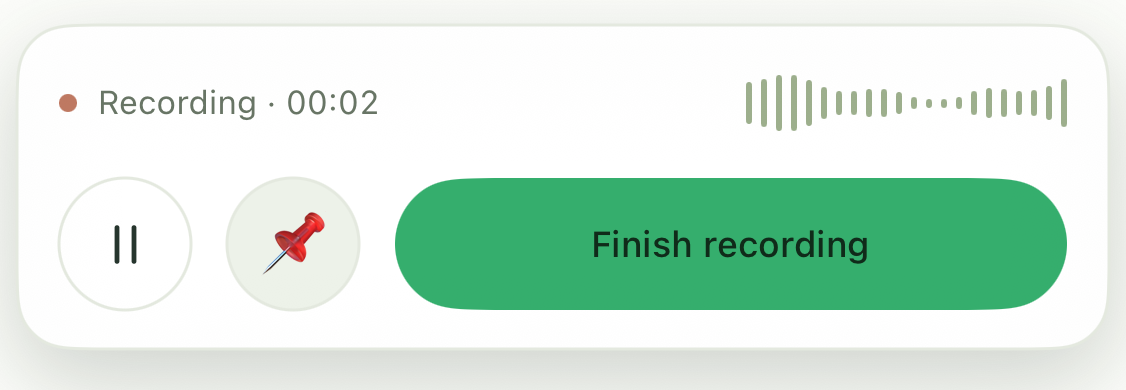
Keep your devices connected while the audio transfers. Transfer complete does not mean the notes are ready. Give Base time to process the recording.
Open the meeting on Mac and iPhone. Listen back and check that a transcript and notes are there.
For your Watch, continue with Record with Apple Watch.